













Bringing AI Into Telecom Operations with the ConnexCS MCP Server
The Troubleshooting Problem No Dashboard Solves
A customer calls to report a failed call. You know roughly when it happened and who was involved. What follows is familiar to anyone who has worked telecom operations: open the CDR portal, locate the record, switch to the SIP trace viewer, cross-reference the routing log, check the vendor response codes, and eventually piece together an explanation that should have taken thirty seconds but took twenty minutes.
The problem isn't that the data doesn't exist. It's that the data lives in five places, none of which talk to each other.
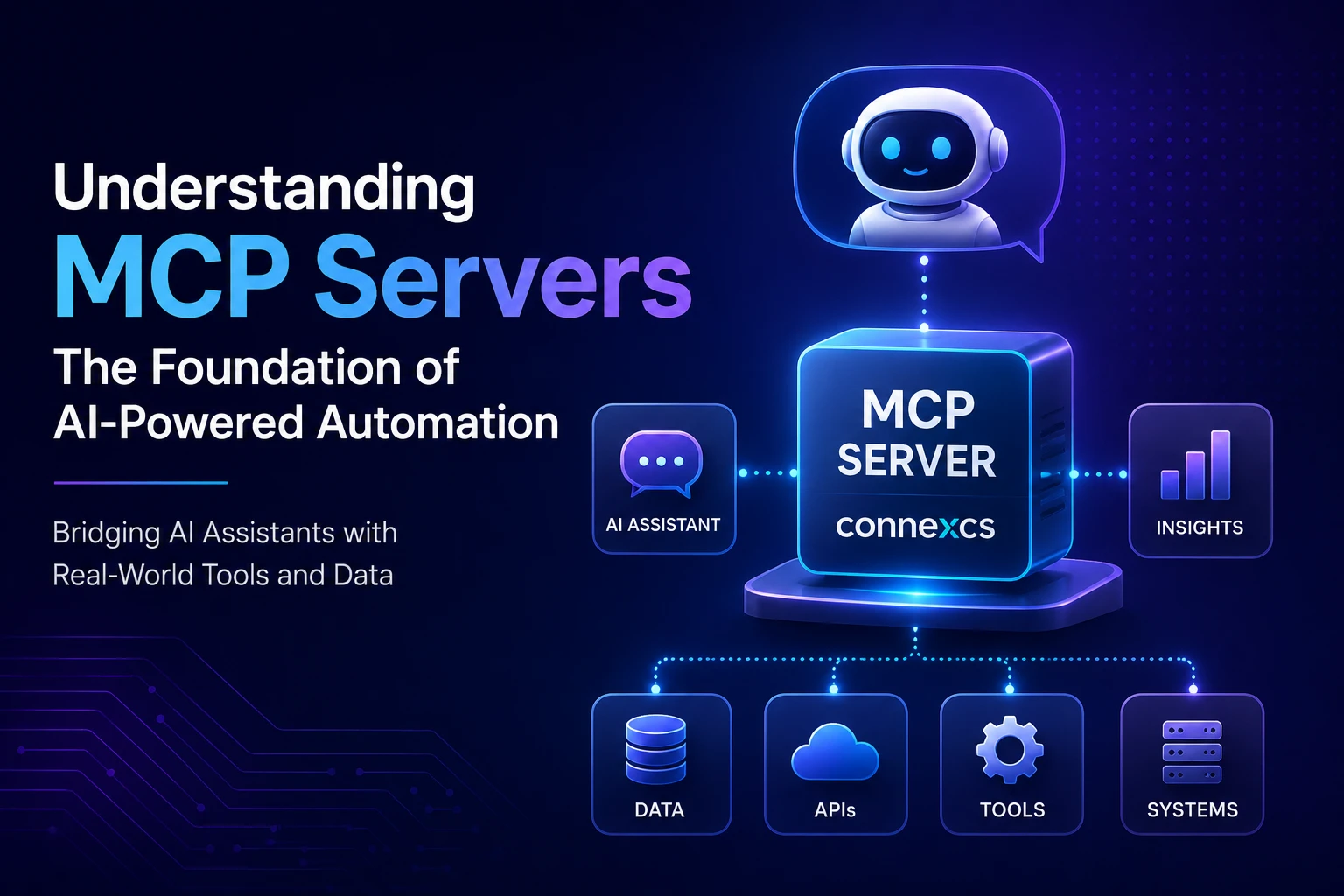
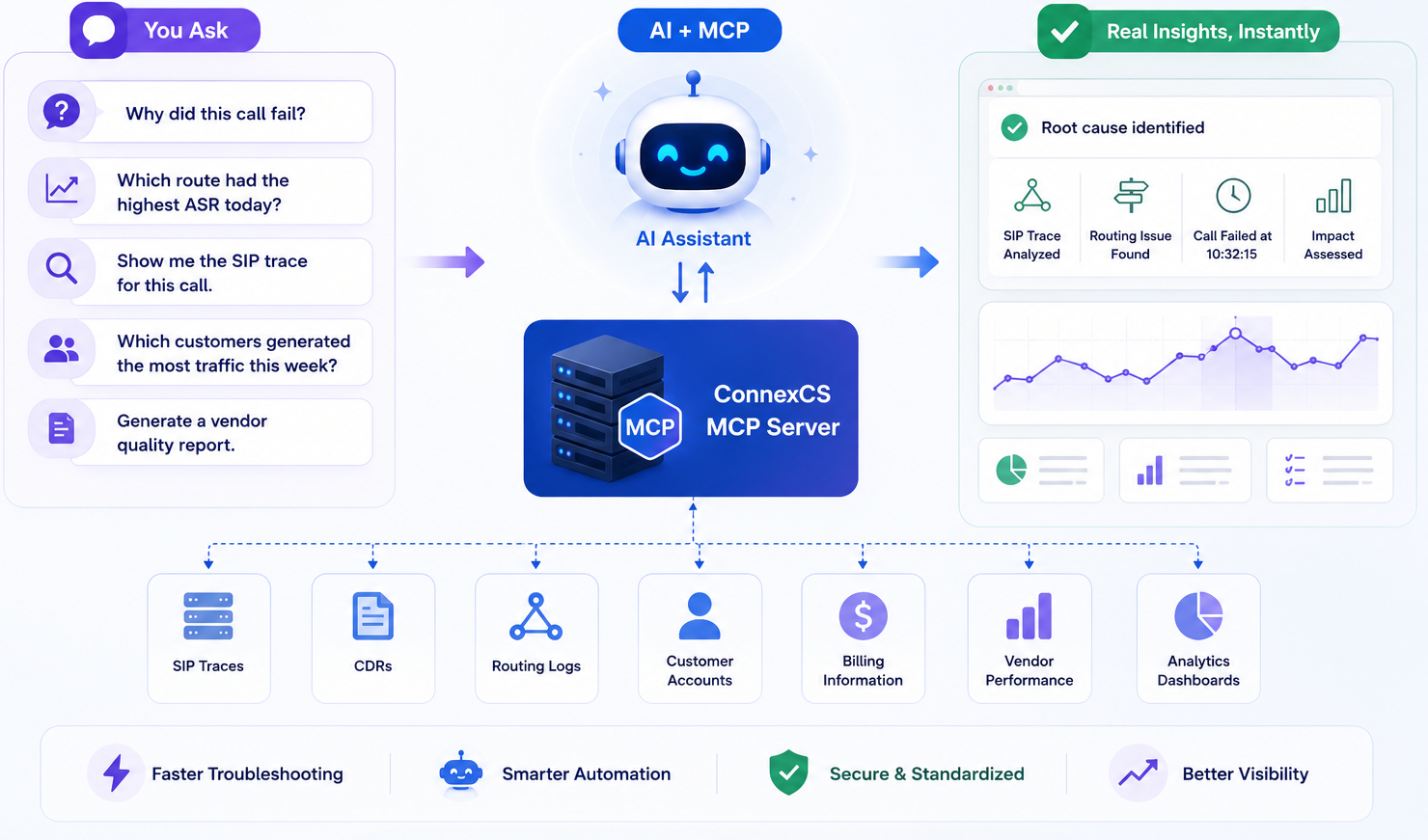
Model Context Protocol (MCP) is an open standard designed to close exactly that gap — connecting AI assistants to live operational systems so they can retrieve, correlate, and explain data through a simple conversational request. The ConnexCS MCP Server brings this capability directly into the ConnexCS platform, giving engineers and support teams a faster, less fragmented way to issues, analyze performance, and understand what's happening on their network right now.
What MCP Actually Is (and Why It's Different from a Regular API)
Most AI assistants are limited by what's already inside the conversation. They can explain concepts, summarize documents, and draft responses — but they can't look up a specific call record, retrieve a live SIP trace, or tell you which vendor had the worst ASR this week. That requires access to external systems, and historically, providing that access meant building bespoke integrations for every AI tool you wanted to support.
MCP removes that overhead. It defines a standardized protocol that any MCP-compatible AI client can use to discover and interact with external tools. Instead of building separate integrations for Claude, ChatGPT, VS Code's AI assistant, and whatever comes next, a platform exposes its capabilities through a single MCP server. Any compatible client connects once and gains access to all of them.
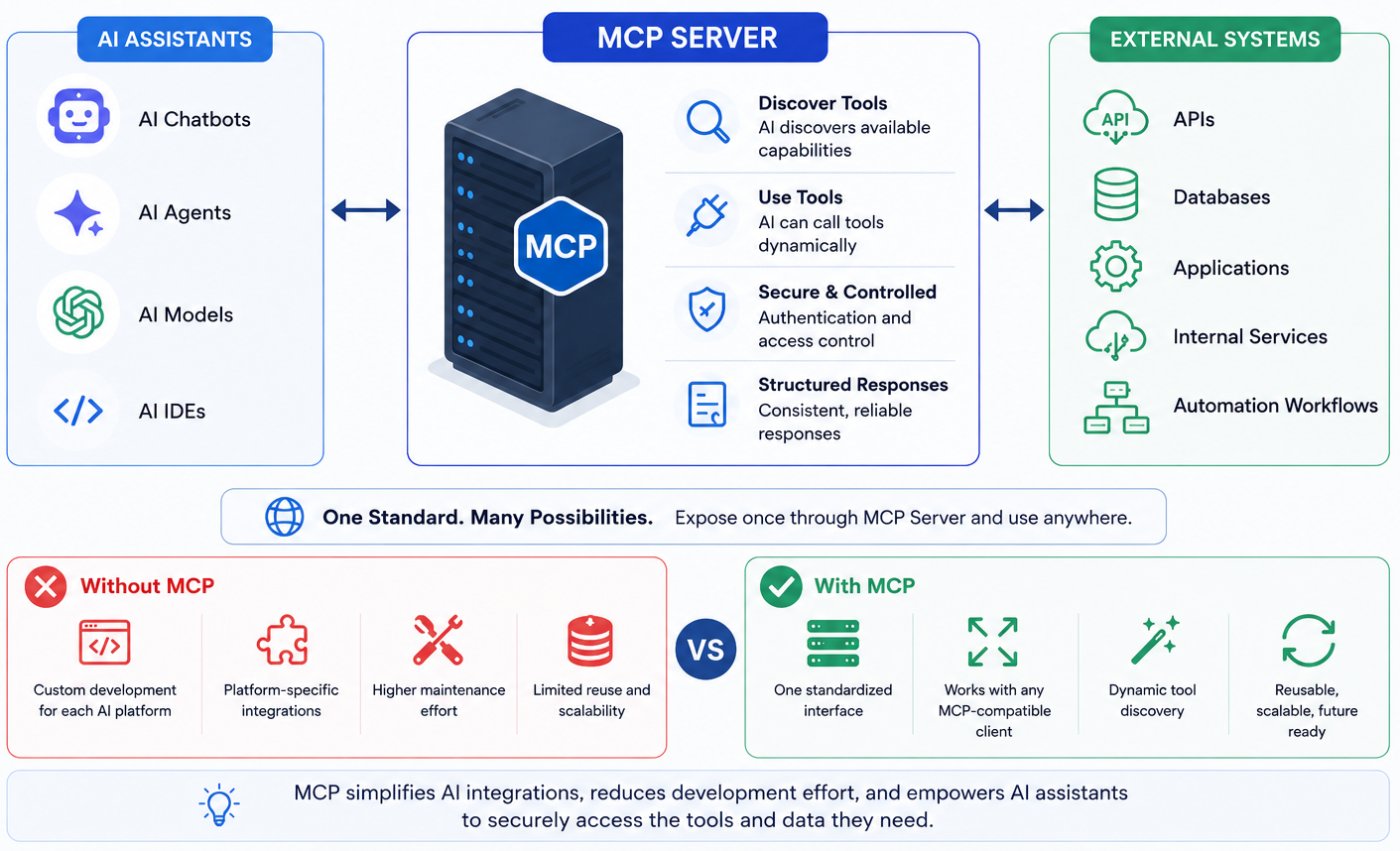
The difference in maintenance burden is significant, but the more immediate benefit is what it enables on the user side. When an AI assistant can reach into a live system, the nature of the questions it can answer changes entirely.
| Traditional API Integration | MCP Integration |
|---|---|
| Custom development for each AI platform | One standardized interface for all clients |
| Separate integrations for different AI tools | Reusable across Claude, ChatGPT, VS Code, and more |
| Manual tool configuration per environment | Dynamic tool discovery at connection time |
| High ongoing maintenance effort | Single server to maintain and extend |
| Platform-specific implementations | Open protocol — no vendor lock-in |
How does MCP Work: Three Components
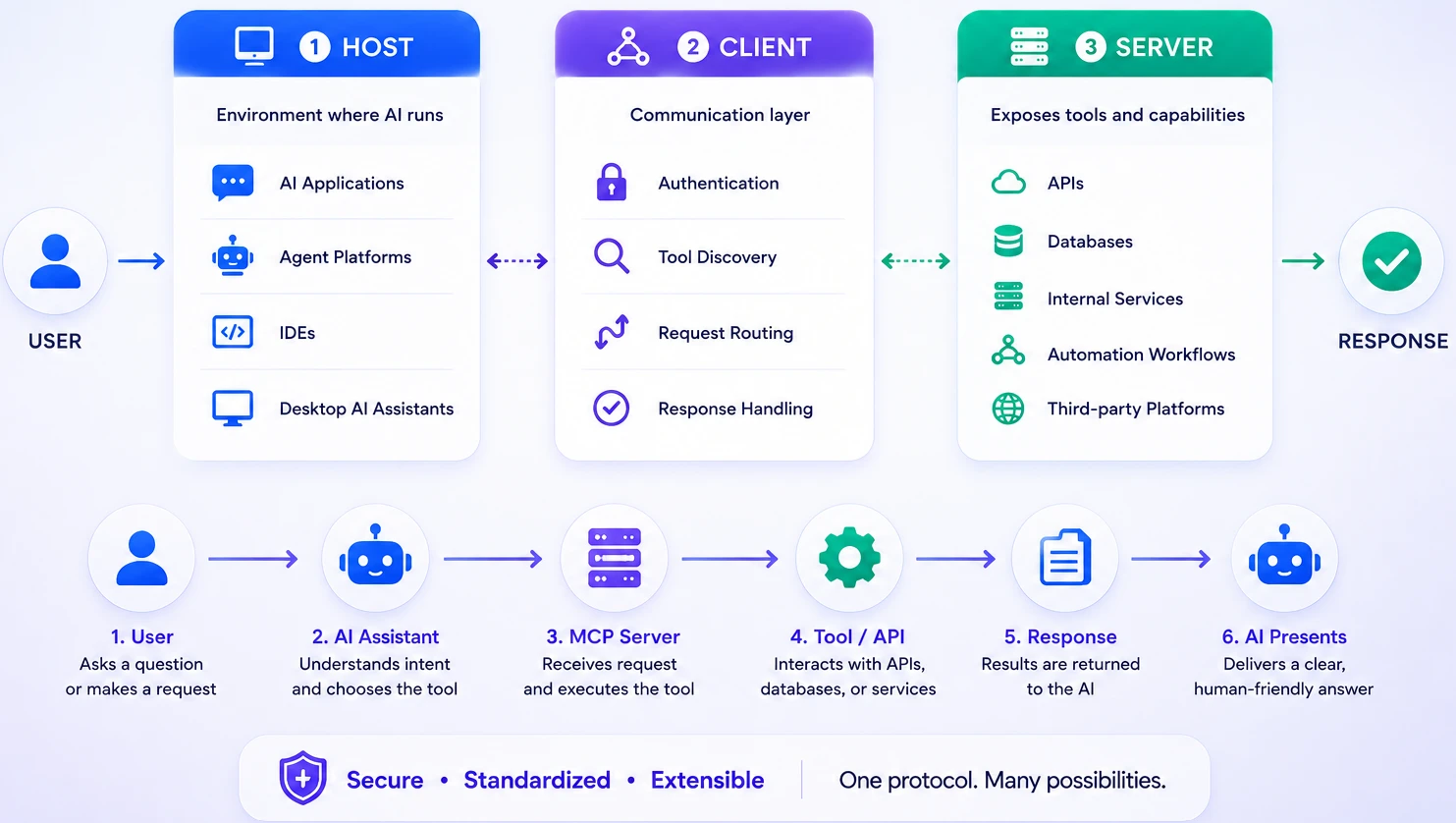
An MCP setup has three parts. The host is the environment where your AI runs — a desktop app, an IDE, an agent platform. The client is the layer inside that host that handles authentication, discovers available tools, routes requests, and processes responses. The server is what actually connects to your operational systems — APIs, databases, internal services — and executes the requested actions.
The flow is straightforward:
User → AI Assistant → MCP Client → MCP Server → ConnexCS APIs → Response
The AI reads your question, determines which tool to call, sends the request through MCP, and presents the result in plain language. You never have to name a tool or know which API was involved. You just ask.
Why are Telecom Operations Are a Natural Fit
Telecom generates a large volume of diagnostic data — and most of it is only useful when correlated with something else. A SIP 503 means little without the routing decision that preceded it. A failed call record is incomplete without the vendor response that ended it. ASR figures require context from the traffic patterns around them.
This is exactly where AI-powered tool access earns its keep. Instead of opening multiple interfaces and mentally joining the data yourself, you describe what you're trying to understand, and the AI handles the retrieval and correlation. Engineers can focus on interpreting findings rather than gathering them.
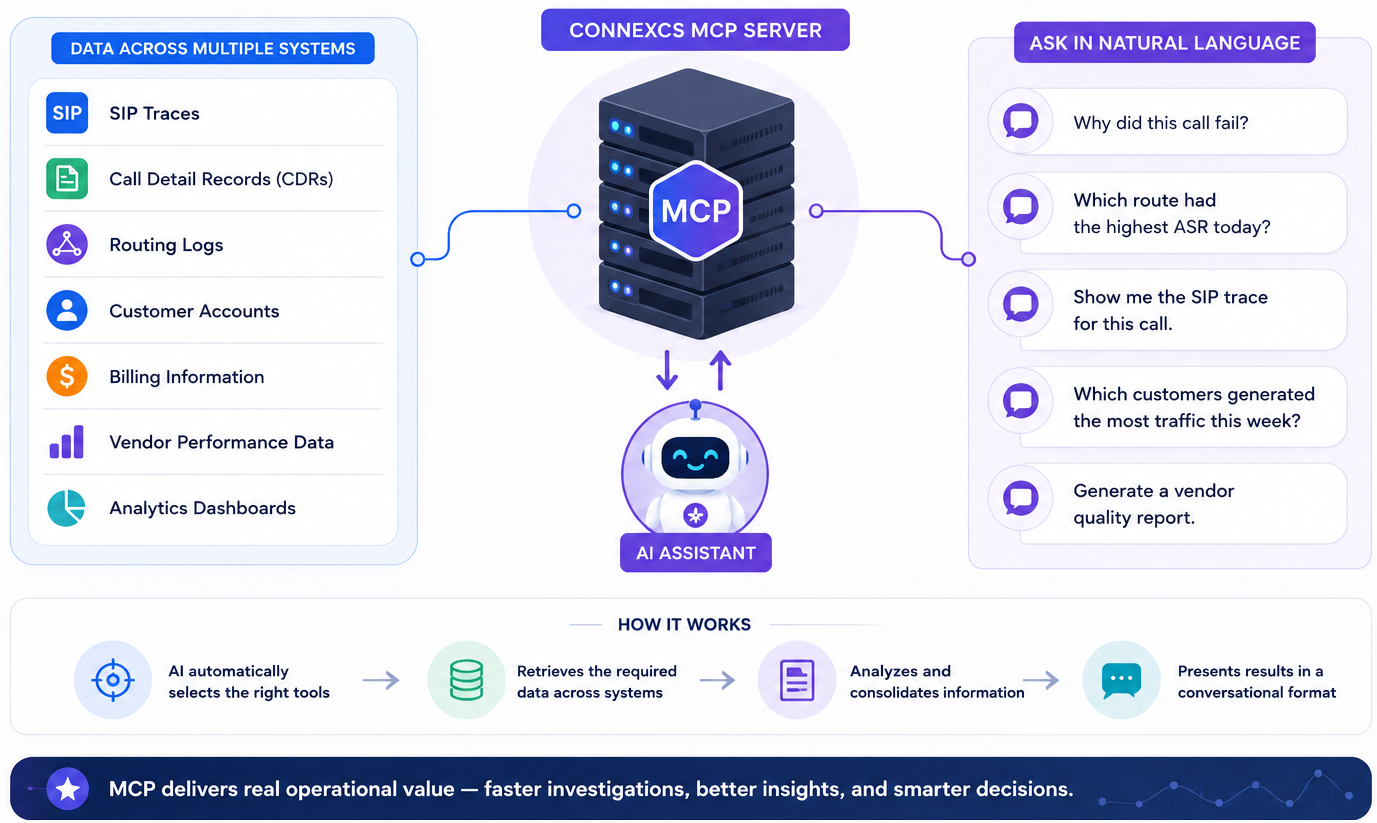
The ConnexCS MCP Server: What It Actually Does
The ConnexCS MCP Server is accessible at https://app.connexcs.com/api/cp/mcp/ and works with any MCP-compatible client — Claude Desktop, Claude Code, VS Code, Cursor, ChatGPT, or any custom client that implements the MCP specification. Authentication supports three methods: OAuth (recommended for Claude Desktop), Opaque token (recommended for VS Code), and username/password for other environments.
Under the hood, the server exposes fifteen named tools organized across five operational workflows:
Call Debugging — searchCallLogs → investigateCall → getCallQuality
Customer Status — searchCustomers → getCustomerBalance → getCustomerCallStatistics → getLastTopup
Call Quality Analysis — getCallAnalytics → searchCallLogs → getSipTrace → getCallQuality
Profitability Reporting — listCustomersByProfitability → getCustomerProfitability → getCustomerDestinationStatistics
Rate Card Analysis — getCustomerRateCards → getRateCardDetails → getRateCardRules
You never invoke these tools by name. The AI selects and chains them automatically based on what you ask. The tool names are listed here because they reveal the actual scope of what's available — this isn't a generic middleware layer, it's a set of purpose-built capabilities for telecom diagnostics and operations.
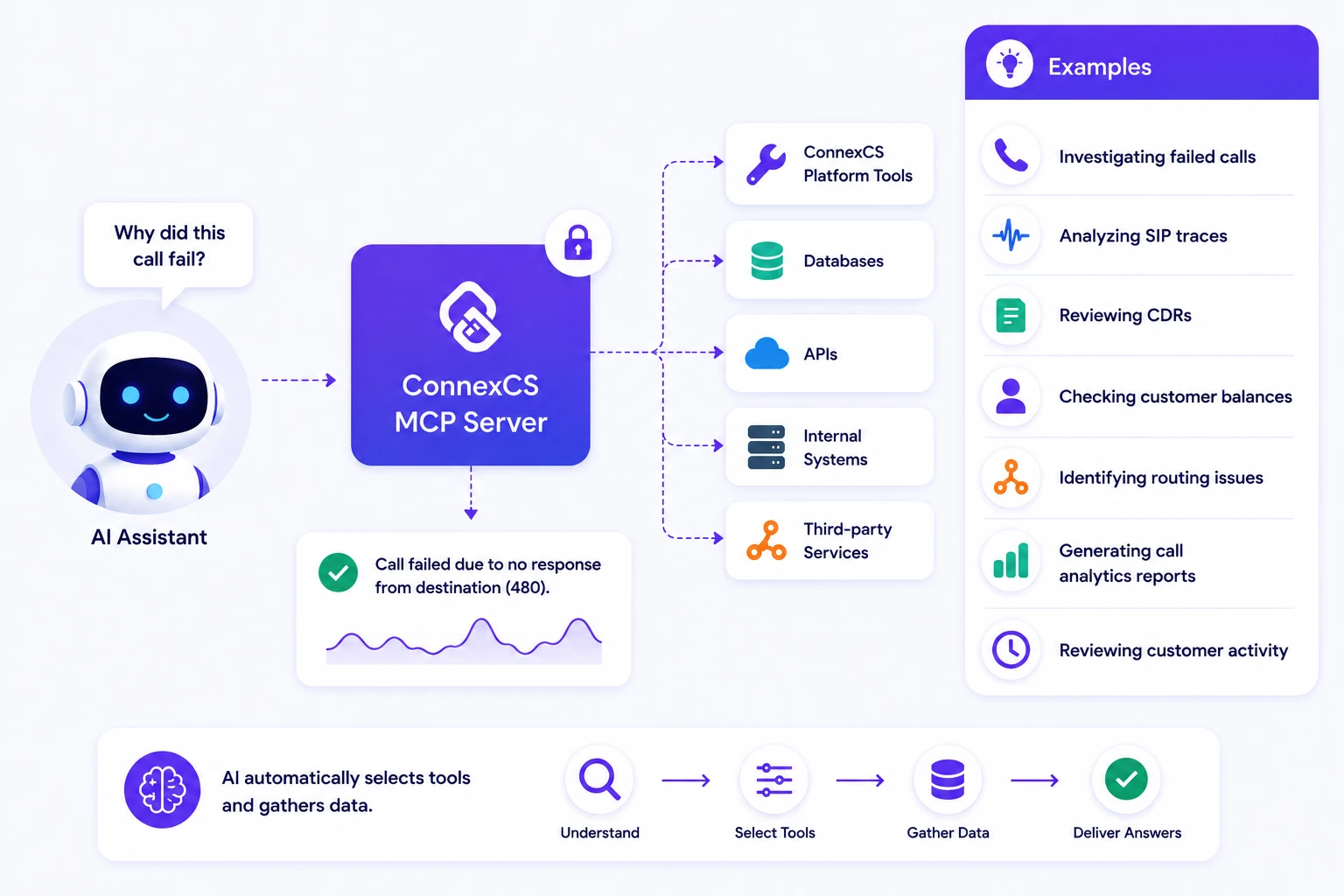
A Real Investigation: Following One Failed Call
Here's what the ConnexCS MCP Server actually does when a support engineer asks:
"Why did customer ABC's call to the UK fail yesterday at 14:32?"
The AI calls searchCallLogs to locate the relevant record, then investigateCall to retrieve the associated SIP trace and routing decisions, then correlates the vendor response codes against the customer's routing policy. If audio quality is relevant, getCallQuality runs next. The entire chain executes automatically.
The response might read: "The call failed because the primary vendor returned SIP 503 Service Unavailable. A secondary route was attempted, but no valid alternatives existed under the customer's current routing policy."
That's a complete explanation — call record, SIP trace, routing analysis, vendor response — returned in a single interaction. The same investigation done manually would require navigating at least three separate views and joining the results by hand.
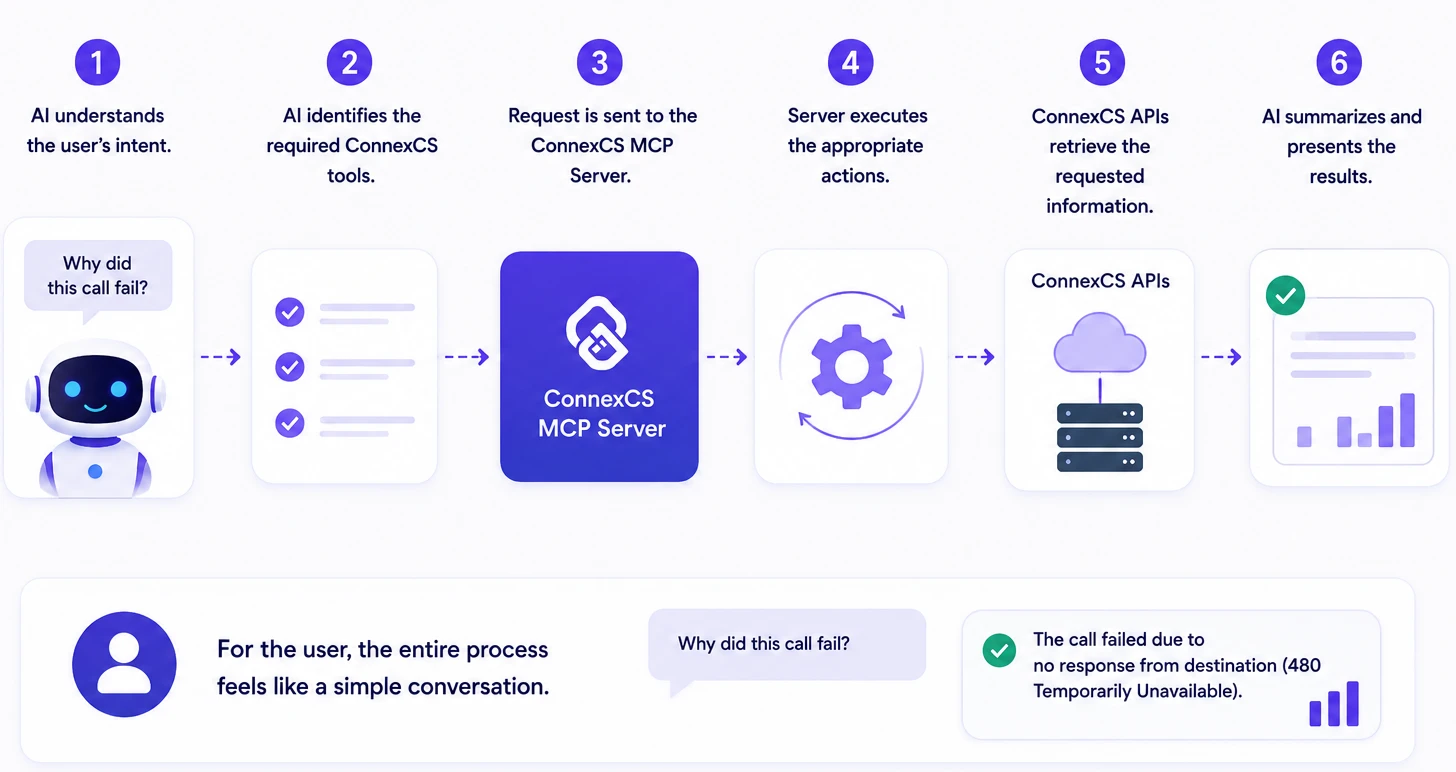
Extending the Server for Your Own Workflows
For teams with specialized needs, the ConnexCS MCP implementation is open source and fully customizable. Custom tools can be added, internal systems or third-party APIs can be integrated, and data retrieval logic can be modified to match specific operational requirements.
To extend the server, install the Cx MCP App from Setup → App Store → Cx MCP, then point the server to your custom app under Setup → Options → General → Custom MCP Endpoint. This makes it possible to build entirely new capabilities on top of the existing framework — advanced analytics pipelines, automated troubleshooting workflows, or integrations with billing and CRM systems — without rebuilding the core protocol layer.
Connect and Start Using the ConnexCS MCP Server
Connecting takes a few minutes. For Claude Desktop, navigate to Settings → Connectors → Add Connector, enter the server URL https://app.connexcs.com/api/cp/mcp/, and authenticate via OAuth. For VS Code, add a mcp.json configuration file to your .vscode folder with your Opaque token and the same endpoint URL, then restart the editor.
Once connected, your AI assistant has access to all fifteen tools across the five workflows described above. No additional configuration is required to start asking questions about calls, customers, vendors, or routes.
Full setup documentation, including configuration examples for additional clients, is available at docs.connexcs.com/mcpserver.
In the next article, we'll walk through using MCP Inspector with the ConnexCS MCP Server — how to browse available tools, validate requests, inspect responses, and accelerate MCP development workflows before writing a single line of production code.